Plant and Tree Revision Setting
Plant/Tree Revision Setting
This is the setting that controls the assessment computation of plant/tree property. Included are settings for Assessment Levels and Plant/Tree Unit Values.
To create a new setting, on the Main Menu explorer, navigate and double-click Settings -> Assessor -> Plant/Tree Revision Settings item.
On the list page, click on
Newto open the New Revision Setting page.

- Enter the Revision Year and click
Save. After successfully saving the record, the main screen is displayed.
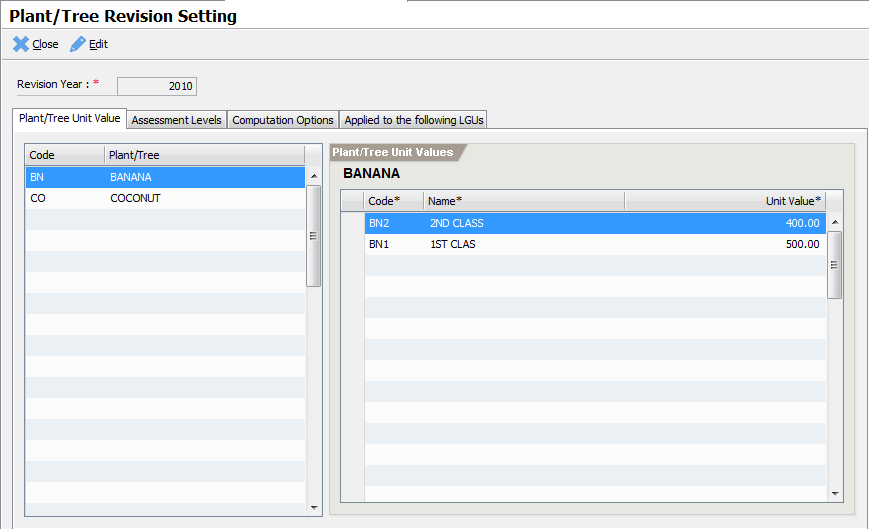
Plant/Tree Unit Values
Plants and trees unit values are based on its type or class as defined in the revenue code.
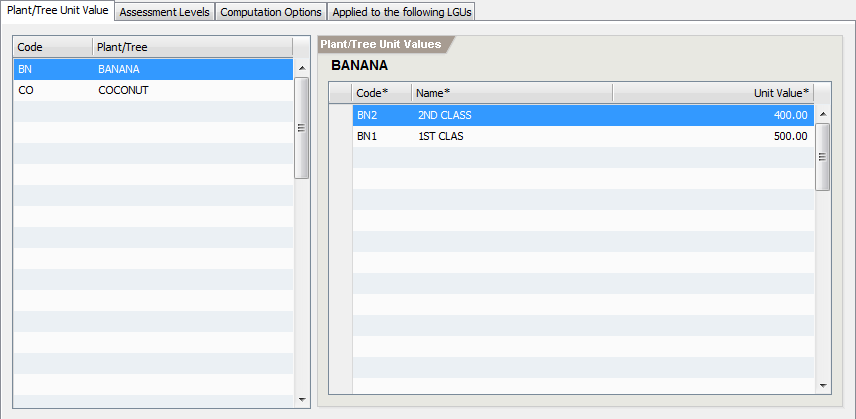
To add a unit value, select the Plant/Tree Unit Value tab
Select the Plant/Tree item from the plant/tree list to add unit values
On the plant/tree unit value list, click on the Code column of the first empty row.
Enter the following information:
Code – a required plant/tree unit value code
Name – a required plant/tree unit value name
Unit Value – the unit value amount
Assessment Levels
The Assessment Level tab defines all applicable assessment rates for each actual use. The rates are used to compute the assessed value of a property.
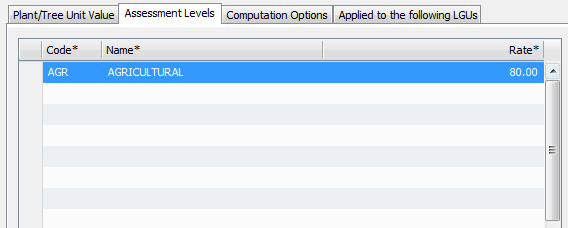
To add a new assessment level, click on the “Code” column of the last empty row.
Enter the following information by moving from column to column:
Code – a required assessment level code
Name – a required assessment level name
Rate – the assessment level rate expressed as percentage
After entering the Rate, press Enter to commit the item.
Applied to the following LGUs
ETRACS now supports cases where different revision settings are applicable to specified LGUs. Inorder for a setting to be useful, the LGUs must be added to the list. Use the Search LGU field to lookup and add and LGU to the list.
